


Build Your LinkedIn Profile
In 2015, LinkedIn gained over 347 million unique users, and 40% of those users reported checking the site daily. Couple those statistics with the fact that it consistently ranks on the first or second page of search results when looking for individuals, and you have a pretty solid reason for spending the few minutes it takes to set up a LinkedIn profile for yourself! Just click here and fill out the information. When you're done, hit the Join Now button.
The most visible portions of your LinkedIn profile the information that everyone can see publicly are your name, picture, and headline. This data may often appear on the actual list of search results, so it's important to be conscious of what you have in those fields. Use your real first and last name, or a nickname if that is what you go by in business. Your headline can be creative but should at least indicate that you are a real estate agent. Once they click into your LinkedIn profile, viewers will also be able to see your past experience, location, education, and how many people have recommended you.
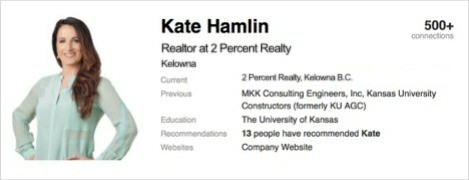
Now for a point of clarification: recommendations you've received are only visible to 1st, 2nd, and 3rd-degree connections when they are signed in to LinkedIn. This means that people outside your network won't see them. Your public profile displays the number of people that have recommended you, but not the actual recommendations. However, if the person viewing your profile was referred to you, they will likely be connected to you on LinkedIn. Even if the potential client is completely outside your network, the fact that you have any recommendations will impress them!
Your LinkedIn profile serves as your online résumé, and it is the best way to convey to search engines and your potential clients what kind of professional you are. Because it has the ability to contain a lot more information about your past and present experiences than a print résumé can, feel free to add as much detail as you can. The more descriptions and keywords on your profile, the more likely you'll show up on web searches when leads are looking for real estate help. For help with what information you should include on your profile, try answering the following questions to get your creative juices flowing:
Honors and Awards
Who You Should Ask for a Testimonial or Recommendation
As mentioned in the introduction of this resource, there is a fundamental difference between reviews and testimonials. The more reviews you can gather on sites like Google and Yelp, the more consistent you will seem to your potential clients as they search for you online. Testimonials, on the other hand, will prove to them something more about the type of person you are that you inspire confidence and loyalty from the people around you.
Therefore, testimonials should come from your absolute best fans: the ones who not only felt like you gave them a 5-star experience, but also believe that you will do the same for everyone else. Perhaps they've worked with you multiple times, or referred you to their own friends and family. If you ask a personal connection for a recommendation, chose people who have known you and had a close relationship with you for an extended period of time.
Try the email template below when asking for a testimonial from a past client:
Hi [Name]
hope you're doing great!
I wanted to enlist your help.
My business is bwlt on working with good people such as yourself
Can you send me a quick testimonial about what you thought of the negotiation skills you observed during the time we worked together?
This would be a tremendous help in growing my real estate business. Thanks!
Feel free to add some personality to this template, such as your own memories of your experience together. This message should be going to someone with whom you are fairly close, so you will know best how to address that person!
LinkedIn calls testimonials recommendations, and it is worth noting that there is a difference between recommendations and endorsements on the site. Endorsements are a way for your LinkedIn connections to validate the skills you list on your profile. They do not give you the opportunity to elaborate on experiences.
Requesting a Recommendation on LinkedIn
You can use the email template above to request a testimonial, and you can certainly edit it to include instructions for putting that testimonial on LinkedIn. However, if you are already connected to the person from whom you are requesting a testimonial, then you can cut out that step and request a recommendation directly from the site!
To request a recommendation from a LinkedIn connection, follow the steps below:
- Log into your LinkedIn profile
- Hover your cursor over your profile photo in the top right corner
- Select Privacy and Settings
- Under the Helpful Links section, click on Manage Your Recommendations
- Click on the Ask for Recommendations tab
- Follow the prompts, then click Send
There is no limit to how many recommendations you can give or receive, but you can only request recommendations from three connections at once. Therefore, you don't want to wait too long for a connection to respond to your request. Helpfully, LinkedIn has a reminder feature that you can easily access under the same Ask for Recommendations tab that you originally used to send the request. Just find the request, which will be listed at the top of that page, and then click the Remind button. Make sure to change the message text before you click send. You should also try calling your contact!
If none of the above worked, then you can also withdraw your recommendation request so that you can send one to another connection. Navigate to the Helpful Links section under the Privacy and Settings option of your profile, then click on Manage Your Recommendations. Select Ask for Recommendations, then choose Withdraw next to the recommendation request you would like to rescind.
Accept and Display a Recommendation on Your Profile
When someone recommends you, you'll receive a message in your LinkedIn inbox and a notification on the Manage Recommendations page. Before the recommendation can be displayed on your profile, you will need to accept it, which you can do one of two ways.
To accept the recommendation from your inbox:
- Move your cursor over the Inbox icon in the top right of your homepage
- Click the View button to open it
- Click Add to Profile
To accept the recommendation from the Manage Recommendations page:
- Go to your profile
- Scroll to the Recommendations section and click the Manage link
- Find the Pending Recommendation section
- Hover over the recommendation and click Add to Profile
You can also select Ask for Changes if you want the sender to make any changes before adding it to your profile. We caution you to be judicious with this option, however. You don't want to offend the person who is so kindly taking time out of their day to help you! It depends on your relationship to the person, but we suggest calling him or her before you send back their recommendation so that you can discuss the changes together.
Once you've approved the recommendation, it will appear in the Recommendations section of your profile. It will also be added to the count of recommendations that appears at the very top of your public profile. By default, LinkedIn will send an update to your network on the website that you received a recommendation. If you want to disable this feature, which is called activity broadcasts, you can turn it off from your Privacy and Settings page.
LinkedIn Etiquette
Just as in real life, the concept of a fair trade exists in the online world. For LinkedIn, this means that people will be more likely to write you a recommendation if you freely give them out yourself. And you should know that this isn't a secret: under the Recommendations portion of your LinkedIn profile, people will be able to see not only the recommendations you've received, but also the full text of the recommendations you've given to others in your network.
There a number of different ways to start writing recommendations of your own. You can navigate directly to the LinkedIn profile of the person for whom you wish to recommend, or you can follow the steps below:
- Log into your LinkedIn profile
- Hover your cursor over your profile photo in the top right corner
- Select Privacy and Settings
- Under the Helpful Links section, click on Manage Your Recommendations
- Click on the Give Recommendations tab
- Start typing in the name of the person you want to recommend, and select their profile from the drop down list
- Fill in your relationship and other information as prompted
- Write the text of your recommendation
- Write a message to the person informing them that you wrote a recommendation
- Review everything for typos or other mistakes, then click Send
As you are writing your recommendation, make sure to include these three components. First, describe your relationship to the person. Second, be as specific as possible about their specific skills and strengths. Third, elaborate on your involvement with that person, focusing on what they did to impress you and the positive effects you've experienced from knowing or working with them.
On Give Recommendations page, you will also be able to review pending recommendation requests. It is good etiquette to respond to these requests as soon as possible, either in the affirmative or the negative. If you decide not to write a recommendation for a person who requested one from you, make sure to contact them and explain why. Remember, your first priority should be to be kind and preserve the relationship with that person.